


In order to meet the daily entertainment needs of most consumers, the set-top box has also been improved, among which the biggest change is that it can achieve the purpose of autonomous on-demand broadcasting through the Internet connection. However, users may encounter problems such as not being able to connect to the wireless network in their daily use. So once they encounter this situation, how should we solve it? The following Xiaobian for you to introduce is about the set-top box to connect the wireless network method and troubleshooting steps.
First, how to connect the set-top box wifi
1, first look at the remote control is what kind of, above the upper and lower around, there is a return, OK these keys are more commonly used. Connect the set top box before operation!
2. Move to the set position with the remote control and click [OK].
3. After entering the setting interface, click “Network Settings” – “Network Settings” successively. Because WIFI has a password to tap in here. If you don’t have a password, just select it automatically.
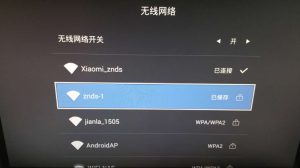
4. After entering, click [WIFI connection].
5. You can choose “automatic access” or “static address” when selecting the connection mode. Automatic access and mobile phone connection on the sample will prompt several wireless router click on the connection input password can be connected normally. Static addresses need to know the wireless router’s network segment, gateway, and DNS. However, you will also be prompted to enter the password during normal connection.
6, after the successful connection remember to test to see whether the network is through. If all are passable, you can see the network movie.
Second, the set-top box can not connect to the wireless network solution
Step 1: Turn off and restart your Wi-Fi connection
If you use a set-top box or TV to access the Internet, a network IP address assigned by the Wi-Fi connection will be reserved in the set-top box or TV, and it will be applied to the current Wi-Fi. If there is no address conflict, do not worry about it. If there is a conflict, you need to shut down and restart the Wi-Fi connection. Here’s how:
Open the menu of the set-top box and TV, go to the Settings bar, select Wireless and Network Settings, go to the Wi-Fi Settings item, select Turn off Wi-Fi in the new window, re-enter the item after closing, select Turn On Wi-Fi to restart the Wi-Fi connection.
Tip 2: Ignore the Internet
If that doesn’t work, you should choose to let your Android device ignore the network and add it again. The operation method is as follows:
Move outside the coverage area of the network you want to ignore, select Ignore the network, return to the coverage area, wait for the network to automatically display, and enter the network password to log in again. The Android box and TV should be able to get the new address and work properly.
Tip 3: Check the Wi-Fi password
Normally, Wi-Fi passwords should be changed periodically; However, when the network is adjusted in this way, the set-top box and TV will not automatically update, you need to manually update the Wi-Fi password.
Go to the Wi-Fi configuration item that you want to adjust, select Adjust Network Settings, enter a new password in the window, verify the password, and select Save Password. So the Wi-Fi will work properly.
Tip 4: Check Wi-Fi advanced Settings
If all else fails, the next thing to do is to go to the advanced Settings of your Android set-top box and TV Wi-Fi.
Open the menu of set-top box and TV, enter the “Settings” window, select “Wireless and Network”, enter the “Wi-Fi Settings”, then enter the “Advanced” option, enter the “proxy server Settings”, make sure that the Android device does not use a proxy server, if found in the proxy part of the IP address or domain name, delete it, to solve the Wi-Fi connection fault.
Tip: In most cases, the proxy and port Settings are not changed; But it’s always a good idea to check these items when common Wi-Fi problems arise.
If we want to connect the set-top box to the wireless network to achieve synchronous on-demand video playback content, we can connect according to the above steps. Of course, sometimes because of the network is not smooth or equipment related failures, we will encounter the problem of unable to connect, at this time, Troubleshooting can be done by shutting down and restarting your Wi-Fi connection, reviewing advanced Settings, or checking your wireless connection password. In addition, we can also turn to relevant professionals.